


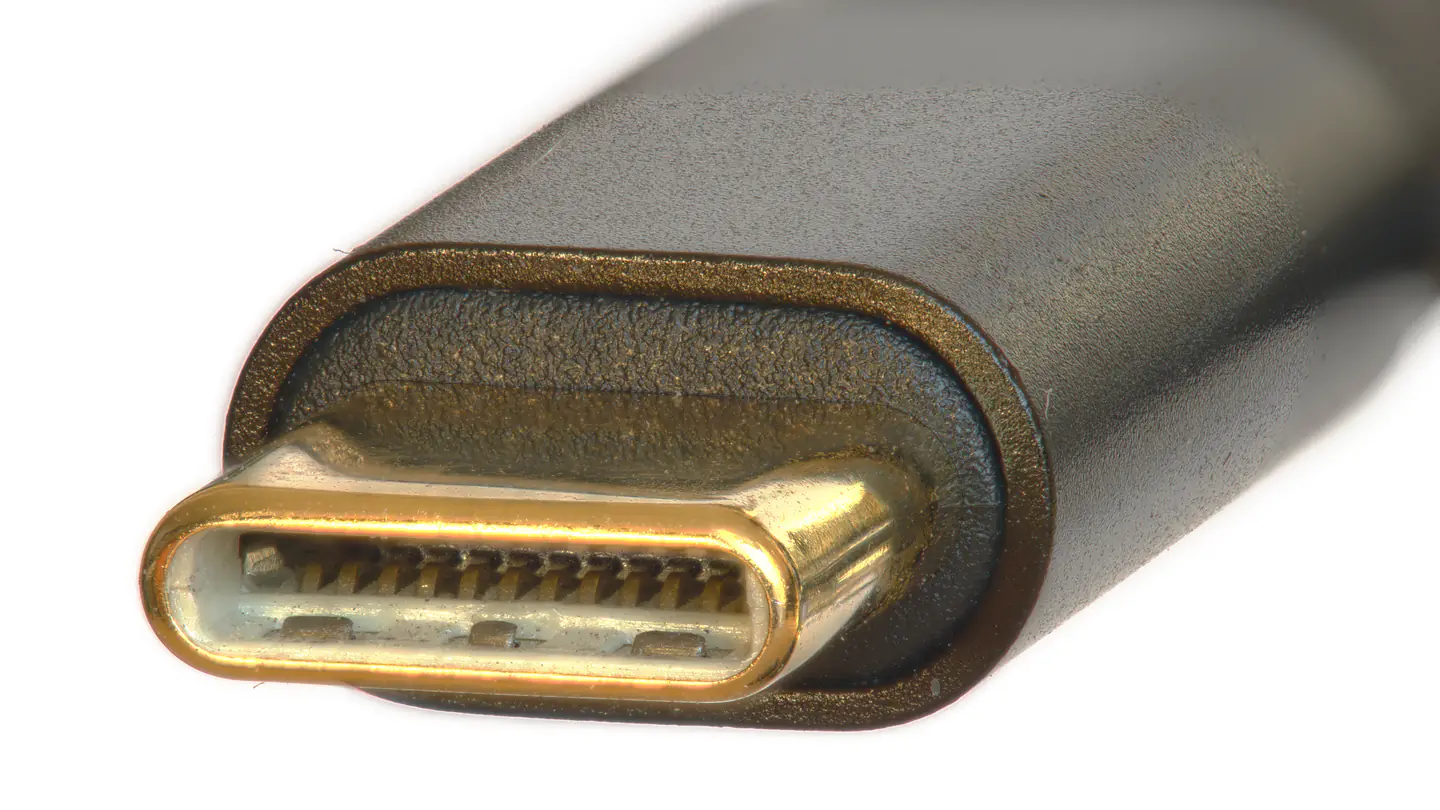
A USB-C cable can fit both your devices and still be wrong for the job. The connector shape doesn't tell you how much power the cable can carry, how quickly it can transfer files, or whether it supports the display connection you need.
Choose the job first. Then check the cable.
Charging: read the power rating
The USB Implementers Forum's cable requirements say USB-C-to-USB-C cables entering its compliance programme must display a 60W or 240W power marking.
A power rating is useful, but it isn't a promise that your device will charge at that rate. The charger, device and connection all matter. Buying a higher-rated cable does not force a phone or laptop to accept more power than it supports.
Our recommendation: check the charging requirements in your device's documentation, then match both charger and cable to those requirements. Keep the exact product model in view; a similar-looking cable from the same brand may have different specifications.
Files: charging power isn't transfer speed
USB-IF also requires a supported data-rate marking for the relevant certified cables, with an exception for High-Speed USB, meaning USB 2.0. Those USB 2.0 cables still need the power marking but do not need the same data-rate label.
So don't read a large wattage number as a file-transfer promise. It answers a different question.
In its USB-C cable guide, Plugable distinguishes USB 2.0 charging cables from higher-speed cables. The guide notes that USB 2.0 cables do not support video output.
If your main job is moving large files, look for the stated data rate and check the ports on both devices. A fast cable cannot make a slower port faster. The storage devices and workload can also limit the result.
This is a specification guide, not a hands-on cable test. We are not claiming measured transfer speeds for any product.
A monitor: check the full connection
A blank monitor doesn't automatically mean the cable is broken. You first need to establish whether the computer's port supports the intended display output, whether the cable carries it, and whether the monitor accepts it through that input.
Our recommendation: check the computer and monitor manuals alongside the cable listing. Search for the exact model numbers and the required display mode. For a dock, include the dock's specifications in that check.
Don't buy on the connector picture alone. A product page that says only charging cable has not established that it will connect your laptop to a monitor.
Make the drawer less mysterious
Once you have confirmed what a cable does, label its purpose: phone charging, laptop charging, external drive or monitor. Keep a record of its actual model and rating before the packaging disappears.
Our suggested shopping checklist is short:
- Power: does its rated capability meet the charging setup's requirements?
- Data: is the supported speed stated, and do your ports support it?
- Display: is the required video use explicitly supported across the whole connection?
- Identity: can you match the seller's listing to a manufacturer's specification?
A genuine certification mark can be useful evidence, but an unexplained logo in a marketplace image is not something this guide can authenticate. Buy from a source where the model and specifications can be checked.
The best cable isn't the one with the biggest number on the box. It's the one whose documented capabilities match what you actually need to connect.


Reader Discussion