


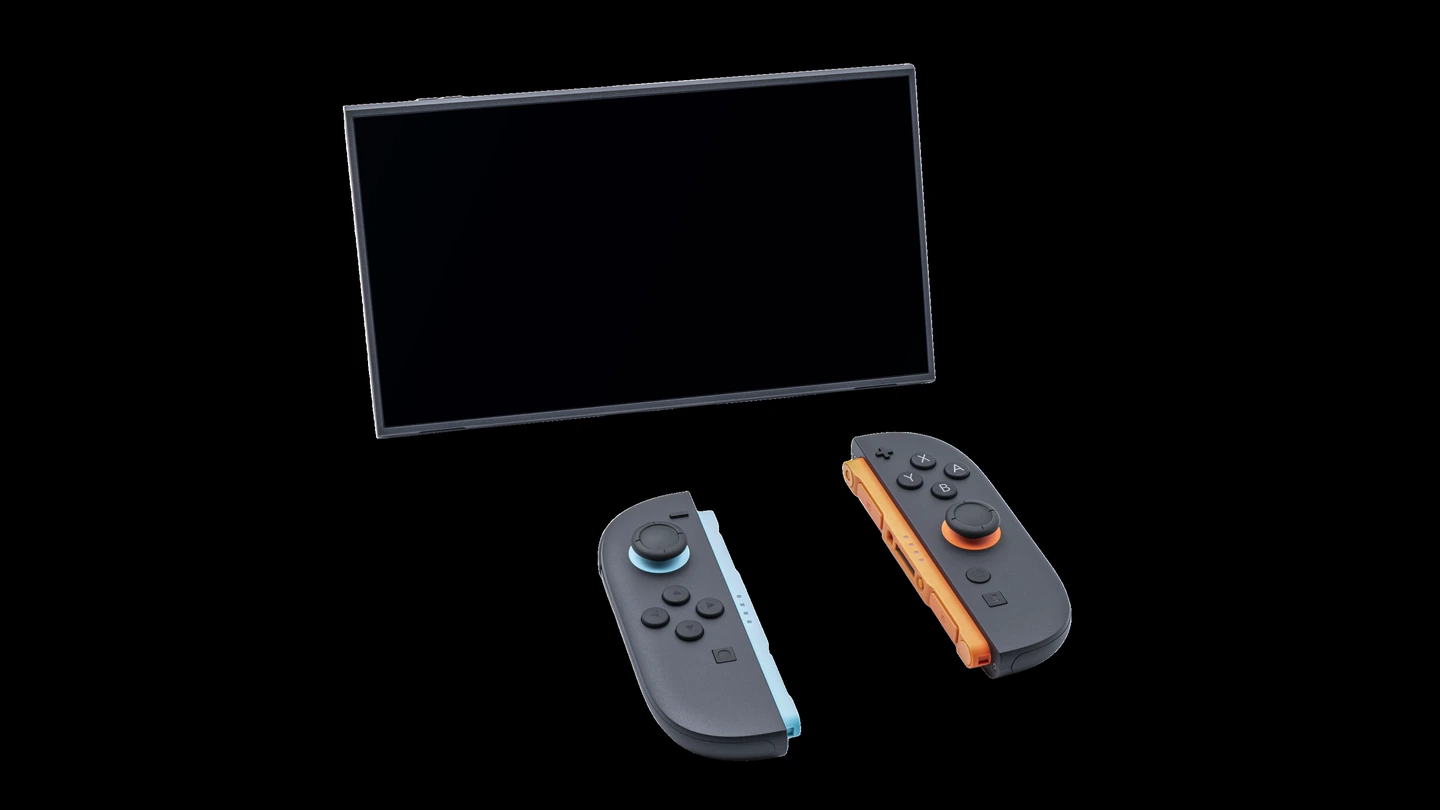
Nintendo Switch 2 with detached Joy-Con 2 controllers, photographed in June 2025. PantheraLeo1359531 · CC BY 4.0. Proportional resize and black matte to preserve the complete photographed product, WebP conversion; metadata stripped.
The card from your old Switch may fit the slot, have plenty of room and even carry Nintendo branding. It still might be the wrong card for your Switch 2.
Extra game storage on Switch 2 requires microSD Express. A conventional microSD card cannot become compatible just by having a bigger capacity or a faster-looking number on the packet.
Nintendo’s compatibility table makes one useful exception: an older card can be used to load screenshots and videos captured on the original Switch. That is not the same as using it to store and run downloaded games.
Capacity and compatibility answer different questions
The capacity tells you how much data the card can hold. The interface tells you how the card and console communicate. Buying more of the first does not change the second.
The SD Association’s interface guide distinguishes older bus standards from SD Express, which uses PCIe and NVMe technology. You do not need to memorise those initials to shop sensibly. You do need to check that the product is actually a microSD Express card.
Likewise, familiar symbols such as U3 or V30 are not substitutes for the Express requirement. The association’s speed-class guide explains that these markings describe minimum writing performance within relevant standards. A large collection of symbols is not a guarantee that the card matches your console.
| What you see | What it tells you | What to check |
|---|---|---|
| 256 GB / 512 GB / 1 TB | Storage capacity | How much space you need |
| microSD Express | Required card standard | Explicit Express compatibility |
| U / V / E speed symbols | A performance class | The standard and device requirement too |
More card space does not mean more save backups
This is the distinction worth understanding before moving anything. Downloaded game files and the saved progress you care about are different kinds of data.
Nintendo’s card FAQ lists downloadable software, updates, DLC, screenshots and videos as items that can go on the card. Game save data stays in the console’s system memory; it cannot be copied or saved to the card.
So a new card can help you keep more software installed. It is not, by itself, a backup of your progress. Nintendo’s data-management FAQ points Nintendo Switch Online members towards Save Data Cloud for supported software. Support depends on the game.
Decide whether you need the upgrade yet
Switch 2 has 256 GB of internal storage, with part reserved for the system. That figure alone cannot tell you when you will run out: what matters is the software and captures actually on your console.
Check Data Management before buying. If you have a small installed collection and room left, you may prefer to wait. If you regularly remove a game you still want to keep installed, extra storage solves a clearer problem.
Choose capacity around that use, rather than assuming everybody needs the largest available card. This guide is not a speed test or a ranking of brands, and it makes no promise that a card will outperform the console’s internal storage.
Make compatibility the first checkout check
- Confirm the format. Look for an explicit microSD Express specification on the actual product listing and packaging.
- Check the capacity. Nintendo lists support for compatible cards up to 2 TB. Capacity alone does not establish compatibility.
- Check the seller and terms. Verify the exact product, return conditions and warranty instead of relying on a photo of a similar card.
- Plan the setup. Nintendo requires an internet-connected system update the first time you use one. Follow its setup instructions rather than assuming the card is faulty immediately.
The most useful upgrade is the one that solves your actual storage problem. Start with the format, then the space you need, and keep your game-progress backup plan separate.
Sources & further reading
- Nintendo: microSD and microSD Express compatibility
- Nintendo: microSD Express card FAQ
- SD Association: bus-interface standards
- SD Association: speed-class symbols
- Nintendo UK: data management FAQ
AI assistance was used in research and drafting. Sources are linked above so readers can check the evidence.


Reader Discussion